|
The following instructions outline the procedure for performing a "Recover By Tags".
| 1. | Quit Genie or Genie Server if they are already running. |
| 2. | Open 4D Tools. The application 4D Tools.exe can be found in a folder called 4D Tools inside your Genie folder. i.e My Computer > C:\Genie\4D Tools\4DTools.exe |
| 3. | You will be presented with an Open dialog box. Change the Files of type: drop down menu so that "Compiled Database (*.4dc)" is shown. |
| 4. | Navigate to the folder C:\Genie\Solo Application\Database\. Click on the file named "Genie.4DC". The window should now look like this: |

| 6. | You may be presented with another Open dialog box. If so, select the blue "Genie.4DD" file in your Genie folder i.e. C:\Genie\ |
| 7. | If there is corruption in your database, you will be presented with the window displayed below. If you don't get this window, skip straight to Step 9. |
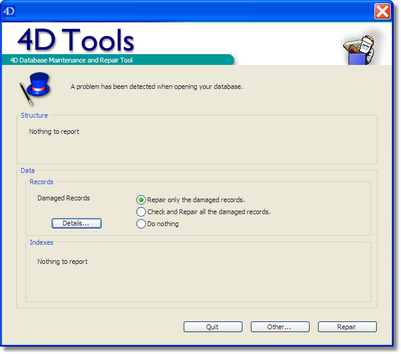
| 8. | Click the Other... button. |
| 9. | Click the Repair tab to bring up the window displayed below. |
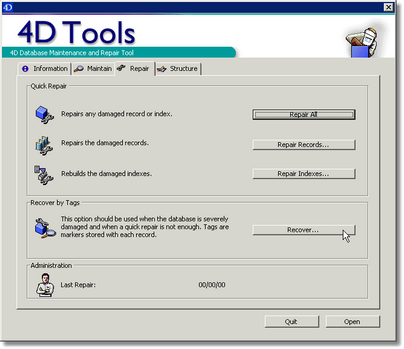
| 10. | Click the Recover button. The following Save dialog will appear: |
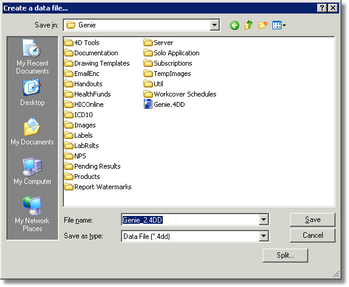
| 11. | Ensure the File name is set to Genie_2.4DD. |
Important: You need to manually navigate back to the Genie folder i.e. C:\Genie before clicking the Save button. To do this, change the Save in: drop down menu to "Genie".
| 12. | The recovery process may take from 5 to 30 minutes or more depending on the size of the data file and the speed of your computer. When the recovery process has completed, a message will appear in the 4D Tools main window saying “The datafile is recovered.” |
| 15. | You will now have 2 data files in your Genie folder i.e.C:\Genie\ |
| 16. | Delete the Genie.4DR and Geni_.4DD files (this is your old data file) |
| 17. | Rename Genie_2.4DR to Genie.4DR. |
| 18. | Rename Genie_2.4DD to Genie.4DD. |
The "Recover By Tags" procedure is complete.
Restart Genie Server, if you are running a network, or the Genie application if you are a single user.
Common Problems
| 1. | Forgetting to quit 4D Tools.
If you don ’t quit 4D Tools, then the new data file is considered to be still in use by 4D Tools.When you open it with Genie, it will only open in “Read Only” mode,because it remains locked while 4D Tools is open. This will generate an error like “Unable to write beyond the end of the file.” |
| 2. | Trashing the new file instead of the old one.
You would usually only make this mistake once! |
| 3. | Creating the new data files in an unknown location.
When 4D Tools asks you what to name the new file and where to save it, double-check to make sure that it is going to be saved inside the Genie folder. If, at the end of the data recovery, the new file is not in the Genie folder, please don’t call to ask us where it is, because we won’t know either! |
|


